Quickstart
Use this when you want the fastest hands-on ZCP loop: deploy an AI Agent recipe, authorize your coding agent, open Browser VS Code, and ask for one product change.
ZCP supports multiple coding agents including Claude Code (Anthropic), Codex (OpenAI), Antigravity, and Grok Build. The screenshots below use Claude Code as the walkthrough example.
Some Zerops recipes include an AI Agent environment. That preset creates app services, managed services, the zcp@1 workspace, Browser VS Code, and bundled agent wiring in one deploy.
This quickstart uses Laravel showcase because it includes real managed services. The same flow works for other recipes that offer AI Agent (local variants exist too).
Prerequisites
- A Zerops account with permission to create a project.
- A subscription login or API credentials for your chosen coding agent (Claude Code, Codex, Antigravity, or Grok Build). Zerops wires the agent to ZCP, but your agent subscription or model credentials stay yours.
1. Choose the AI Agent recipe
- Open the Zerops recipes catalog.
- Open a recipe with an AI Agent environment. For example, open Laravel showcase.
- Select AI Agent.
- Keep Coding Agent and Cloud IDE enabled.
- Deploy the recipe.
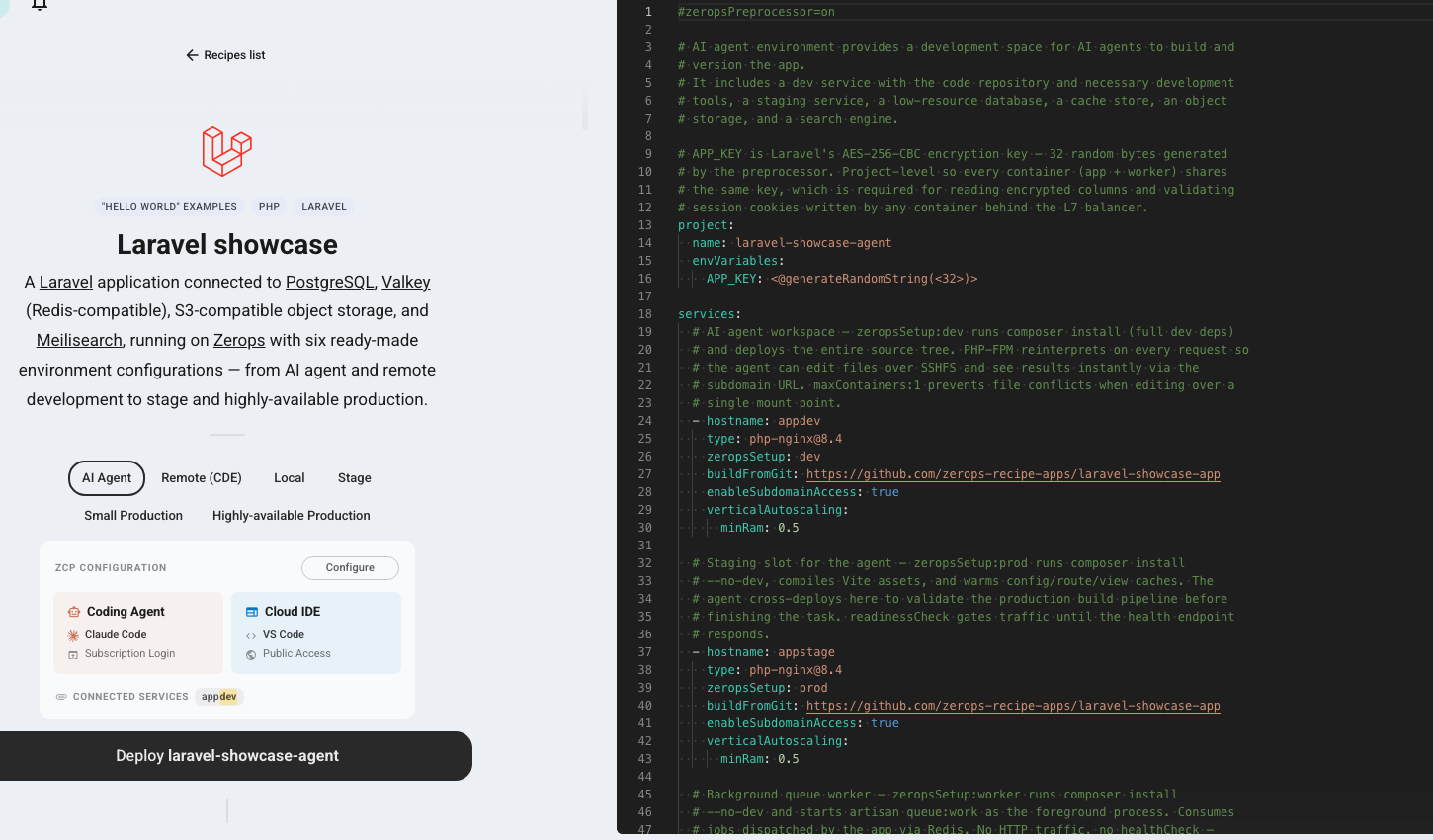 The AI Agent environment adds app services plus remote setup with Coding Agent and Cloud IDE enabled.
The deploy creates app runtimes, managed dependencies, and a zcp@1 workspace. In this recipe it appears as the zcp service. The agent, terminal, and browser IDE run there. App code still deploys to the app runtimes, not to zcp.
2. Authorize your coding agent
When provisioning finishes, the dashboard opens the authentication flow for your bundled agent. If you are using Claude Code (as in the screenshots below), use your own Claude Code subscription login or API credentials.
This is separate from ZCP_API_KEY, the Zerops token used by ZCP. Your agent login or API key is used only by the bundled agent.
If you close the prompt, open the zcp service in the dashboard. Its panel shows the browser workspace, web terminal, SSH access, desktop editor access, and agent authorization state.
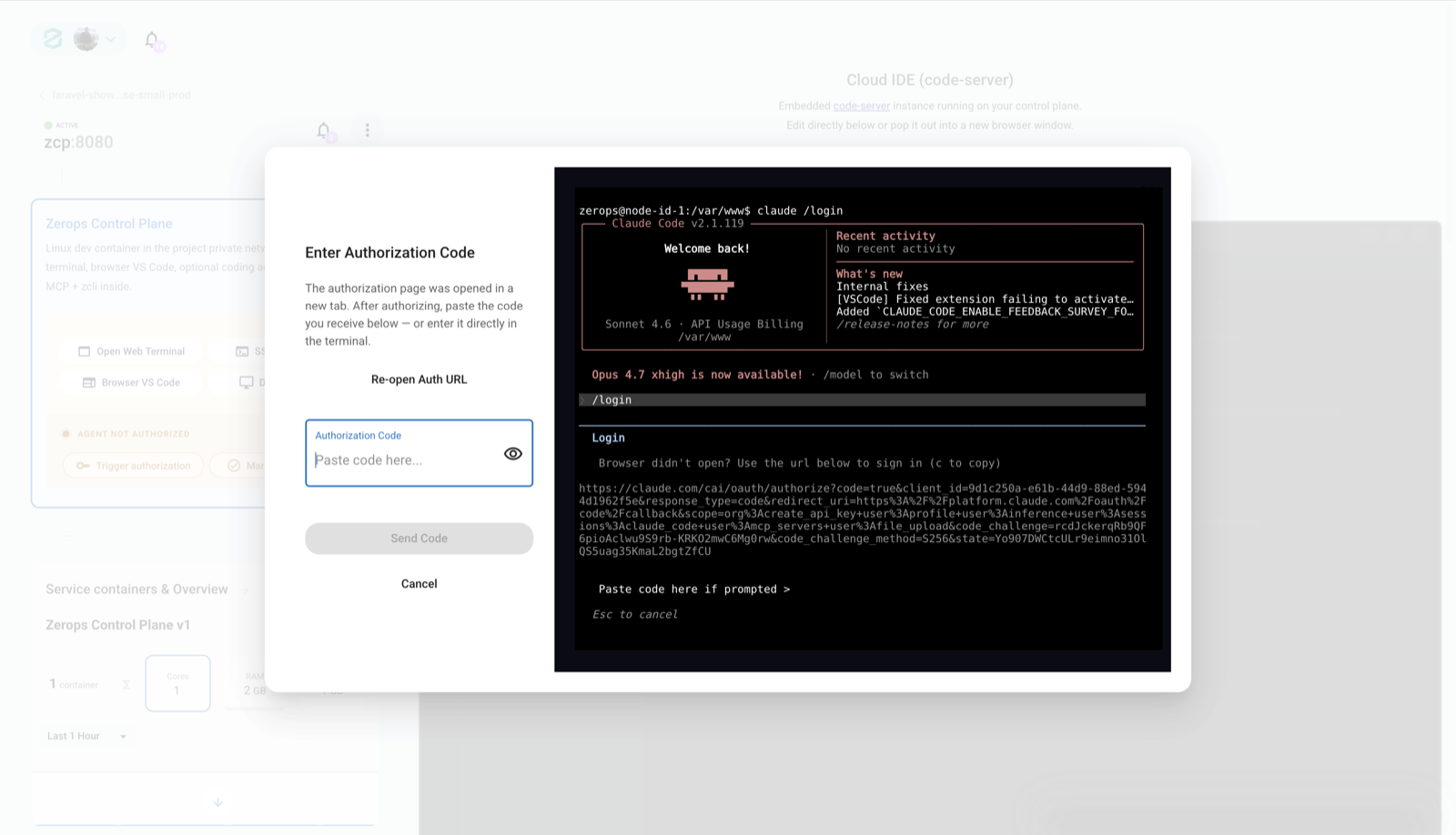 Claude Code opens an authorization flow inside the workspace. Use your own Claude login or API credentials; ZCP credentials are handled separately.
3. Open the workspace
After authentication, continue into Browser VS Code. The workspace opens with files, ZCP configuration, terminal access, and your coding agent panel (the Claude Code panel in the screenshots below).
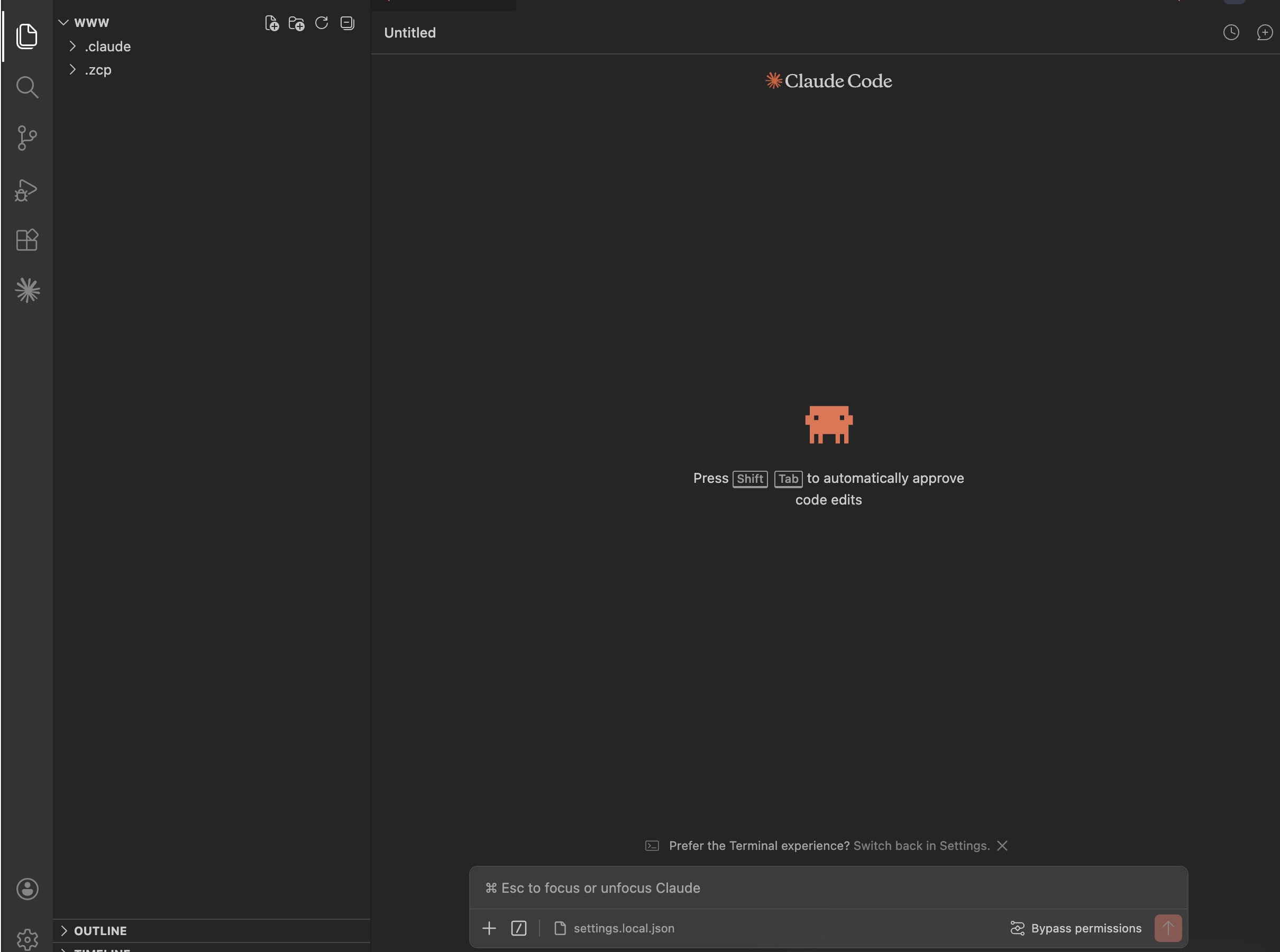 Remote setup keeps the browser IDE and bundled agent inside Zerops.
You are now inside the remote workspace. The agent can read live state, use the MCP tools, reach private services, and deploy app changes to the runtimes created by the recipe.
4. Ask for a product outcome
In your coding agent, ask for the app behavior in natural language. A good first prompt is intentionally short:
The agent should deploy, verify, read evidence, and return proof for the app task. Add detail only when it changes the work.
Add details when they change the product, stack, runtime layout, acceptance criteria, or delivery preference:
Quickstart prompts are short so you can see what ZCP carries behind the request. Longer, detailed prompts are fine for larger engineering work, especially when they change product behavior, stack, runtime layout, acceptance criteria, delivery preference, credentials, or safety approvals.
5. Read the proof
The final answer should give you a real URL, endpoint, UI state, stored result, or blocker. Open the URL and try the behavior the agent says it verified.
For the task-board prompt, create a task, refresh the page, and confirm the task is still there. If it disappears, the app is not done; ask the agent to verify that exact behavior again and continue from current evidence rather than starting over.
If the agent cannot finish, useful output names the blocker: missing credential, missing decision, unsupported runtime choice, or repeated failure it could not recover from.
Next steps
Runtime layout, development work, delivery, packaging, and production release.
Live state, runtime fit, app wiring, deploy evidence, behavior proof, and blockers.
What the project-scoped token lets the agent do, and where the safety boundary sits.